With Lore, we help teams organize AI work, instead of it living on one person's computer and disappearing. We gather every prompt, skill, and AI session and turn it into searchable, shareable infrastructure. Lore preserves the context behind useful threads and enables several use cases built on top of this data.
We initially built Lore to share our Claude threads with each other: as contextual links on PRs, snapshotting some research or investigating for someone else to pick up, or just "check out this cool thing I did." Since then, we've run into many other use cases, and built a whole product around this primitive.
You can sign up on web or in the macOS app. Your teammates can join just by signing up; we'll automatically add users with the same email domain to your workspace (users with gmail.com and other individual email domains will get their own individual workspaces).
Install Lore#
The easiest way to use Lore is the macOS desktop app: it browses Lore in its own window, captures your sessions in the background, and installs the Lore plugin into your coding agents automatically. The plugin can also be set up on its own for explicit sharing and reading.
The desktop app is the easiest way to get started, and it needs no terminal. It's a native macOS app that lets you browse Lore in its own window and captures your coding-agent sessions in the background.
- Download it from lore.link/desktop and drag Lore into Applications.
- Sign in through your system browser.
- Approve the Claude Code connection; the app shows you the exact settings it will add before writing anything.
That's it. The app keeps itself up to date, starts capturing sessions in the background, and installs the Lore plugin into your coding agents (Claude Code, Cowork, Claude Desktop, and Amp) automatically. The usual upload filters and visibility rules apply (see Data Privacy).
First run#
Setup is two steps:
- Sign in. The app opens your system browser for sign-in (the same account flow as the web app) and returns you to the app automatically.
- Configure session upload. Lore works best when it can automatically capture your agent sessions. You'll have the option to enable it for the agent harnesses installed on your computer. You'll also be able to configure an allowlist of directories or git origins for automatic uploads, and choose whether you want to upload existing sessions from the past few days to populate content.
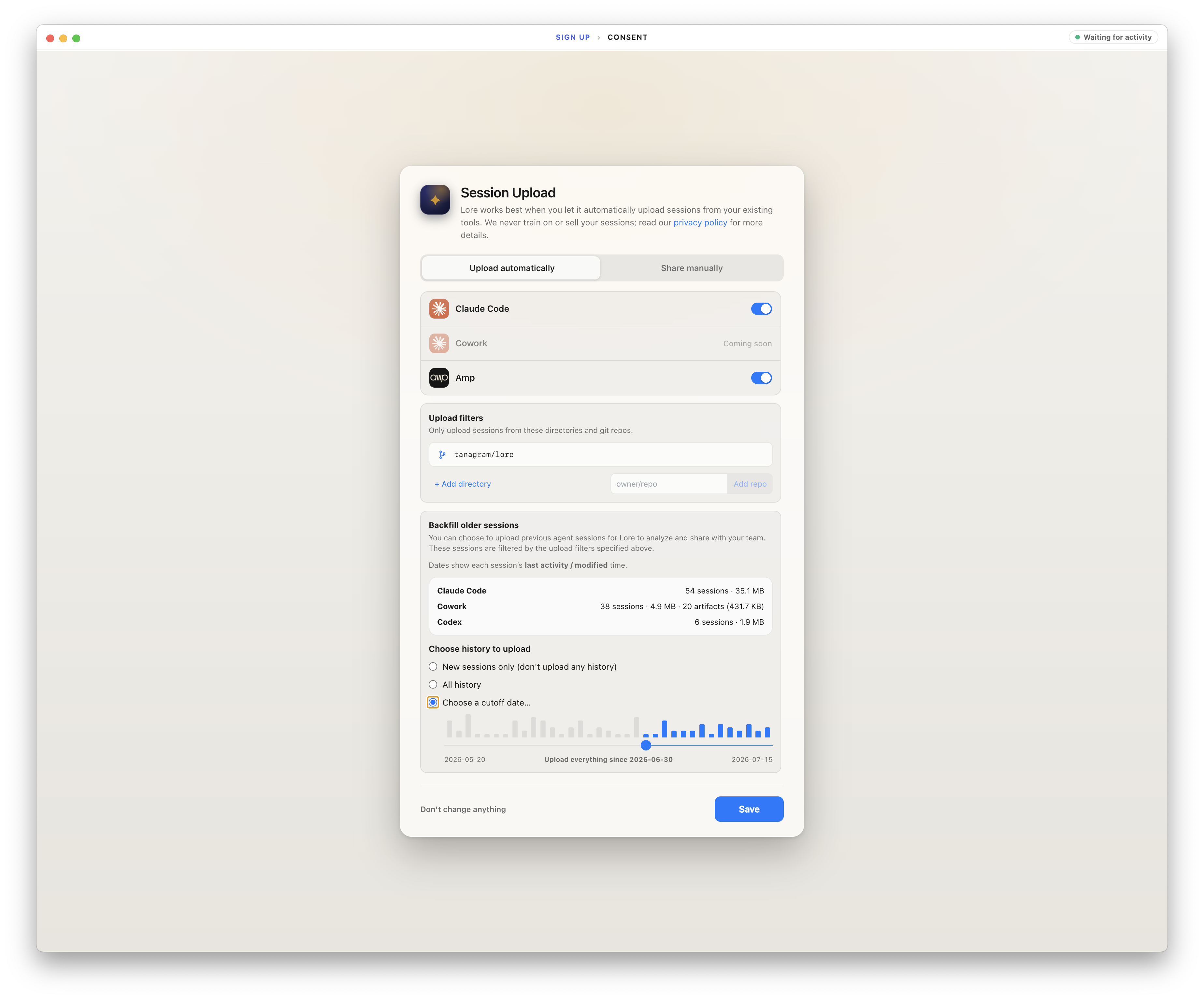
If you've used the app before, you won't see these steps again; the app opens straight into Lore.
You can disable automatic session upload at any time by going back to the “Configure Session Upload…” menu item.
Background capture#
After setup, the app uploads your Claude Code, Cowork, Codex, and Amp sessions as you work. A status pill in the title bar shows what it's doing: Importing sessions while uploads run, Waiting for activity when it's idle, and states like Consent needed or Signed out when it needs your attention.
A few things worth knowing:
- What gets captured. By default the app captures Claude Code sessions from any project. Use Configure Session Upload… to choose which sessions the app can upload.
- Visibility. Uploads follow the same visibility rules as every other way of sharing: your default visibility setting applies, and you can change any thread afterwards. See Data Privacy.
- Mechanism. Background captures use harness-native telemetry (i.e. OTEL) when available, and falls back to a filesystem watcher otherwise. For Amp specifically, we symlink an Amp plugin that converts Amp-emitted events into OTEL spans.
When the app is capturing in the background, the Lore web app shows an Active indicator in the header, so teammates browsing on the web can see the desktop app is doing the uploading for you.
Using the desktop app? Skip this option; the app installs the plugin for you. The manual steps below are for anyone setting up the plugin without the desktop app.
The Lore plugin works with Claude Code, Cowork (in Claude Desktop), and Codex. Pick the instructions for your agent below.
- Open Customize from the side bar.
- Click +, then choose Create (not Browse).
- Click Add marketplace, enter
loredotlink/lore-plugin, and click Sync. - Under the Personal tab (next to “Anthropic & partners”), open the Lore marketplace and install the Lore plugin.
This gives you the plugin slash commands: /lore:share to export sessions, /lore:read to read and search threads, and /lore:fork to continue from an existing thread. Background session capture is managed by the desktop app, not by a plugin command.
- Inside a live Claude Code session, run
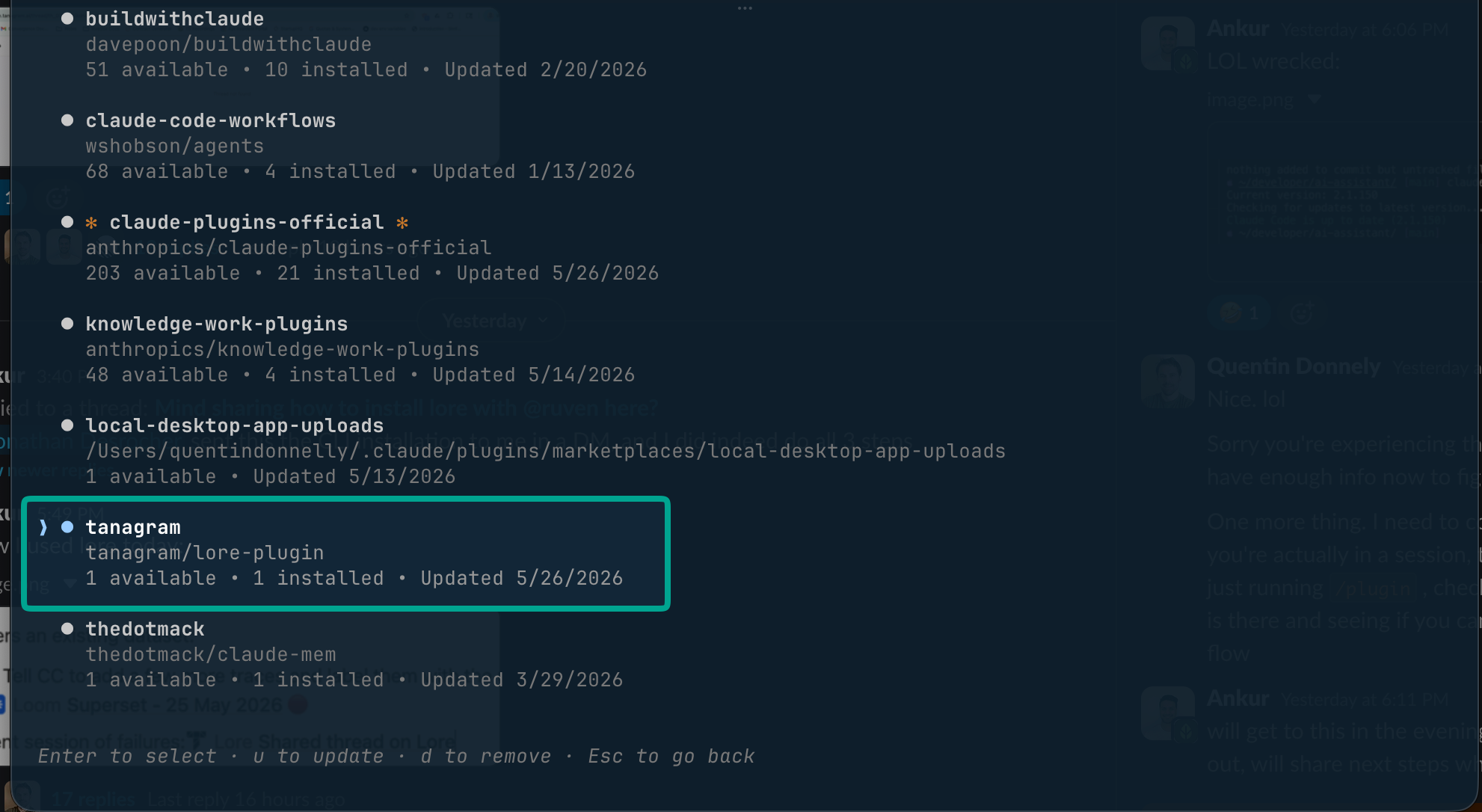
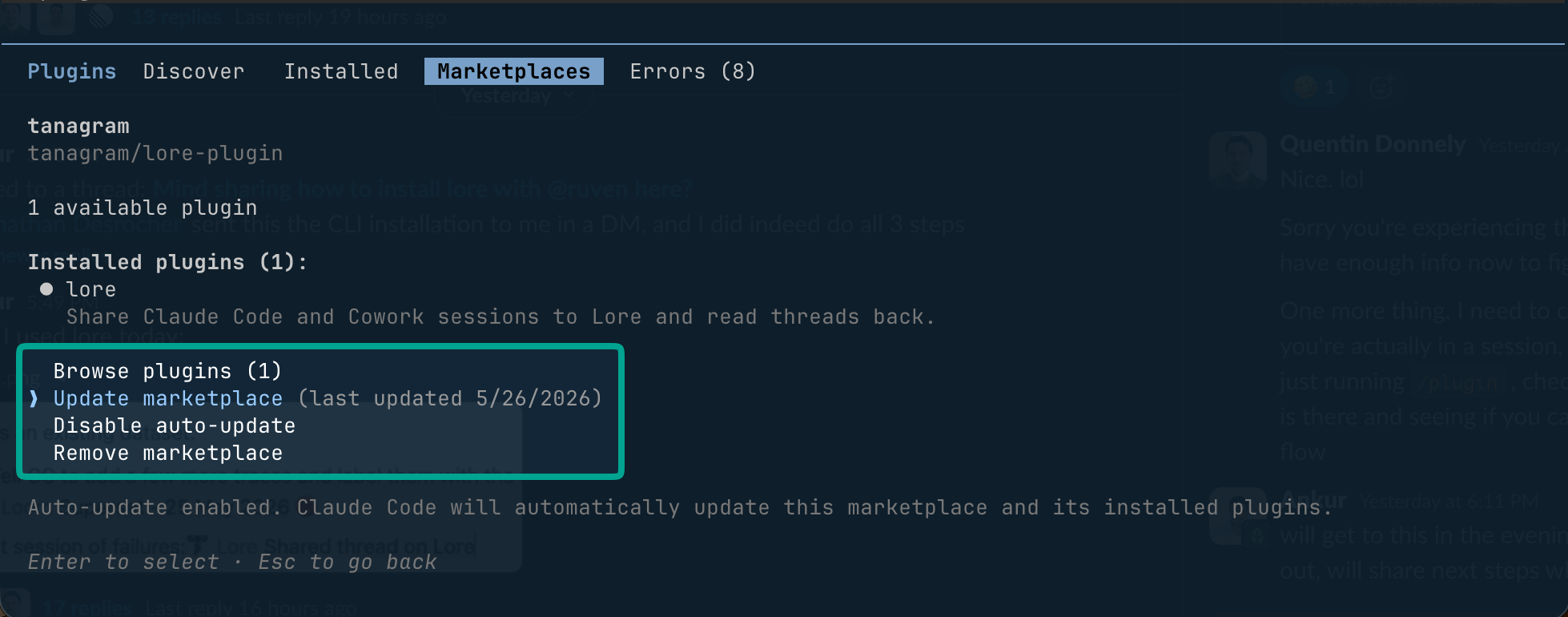
/pluginsto open the interactive plugins TUI. - Switch to the Marketplaces tab and choose Add Marketplace.
- Enter the marketplace source:
loredotlink/lore-plugin. - Open the new loredotlink marketplace and install the Lore plugin.
Claude Code: /plugins → Marketplaces → loredotlink → install Lore:
Or install from a plain terminal outside a session:
claude plugin marketplace add loredotlink/lore-plugin
claude plugin install plugin@loredotlink
This gives you the plugin slash commands: /lore:share to export sessions, /lore:read to read and search threads, and /lore:fork to continue from an existing thread. Background session capture is managed by the desktop app, not by a plugin command.
Install Lore from a plain terminal:
codex plugin marketplace add loredotlink/lore-plugin
codex plugin add lore@loredotlink
This gives you the plugin commands: $lore:share to export sessions, $lore:read to read and search threads, and $lore:fork to continue from an existing thread. Background session capture is managed by the desktop app, not by a plugin command.
The plugin bundles Lore's MCP server, so the agent commands and the Lore MCP tools are both available the moment it's installed. You don't need to add the MCP server separately; that's only for clients that aren't using the plugin.
The first time you use the plugin, it will walk you through authenticating with your Lore account.
Privacy#
Lore threads can be in one of three privacy settings:
privateis visible only to you.workspaceis visible to your team (anyone logged in with your same email domain).publicis visible to anyone with the URL.
New threads default to workspace if you belong to a team workspace and haven't turned off the Share new threads with my workspace setting (on by default). If you're not in a workspace, or you turn that setting off, new threads default to private.
You can control automatic uploads from the desktop app's Configure Session Upload… screen. See Data Privacy for details.